

Why This Matters
Anyone who has fed a stack of journal articles into an AI assistant knows the friction. PDFs are built for printing, not for reading by machines. When a large language model processes a PDF directly, it must first work through layout information, embedded fonts, image layers, and positioning data before reaching the text you actually care about. That consumes tokens, time, and, on metered plans, money.
Markdown solves this. The same article that runs to several megabytes as a PDF often shrinks to a fraction of that size as plain text with light formatting. Nothing of scholarly substance is lost. The headings remain headings, the emphasis remains emphasis, and the argument reads exactly as it did before. What disappears is the packaging.
The difference becomes more pronounced as the library grows. Converting one paper saves a little. Converting two hundred changes what is possible.
The Persona Problem
There is a second reason this conversion matters, and it applies specifically to scholars building customized AI assistants.
If you want an AI system to write in your voice, follow your citation conventions, or reason within your theoretical tradition, you have to give it your corpus. Persona configuration, custom instructions, project knowledge bases, and retrieval systems all work better when fed clean text. PDFs introduce noise: page numbers stranded mid-paragraph, running headers repeating every page, column breaks splitting sentences in half.
Markdown gives the system your argument rather than your page layout.
A Practical Solution
I recently built a small Mac workflow that handles this in bulk. It uses PyMuPDF4LLM, a Python library designed specifically to extract PDF text in a form language models can read well, wrapped in an Automator application.
The result is a small app called PDFtoMarkdown.app. Drag a single PDF onto it, or drag an entire folder, and it writes Markdown files alongside the originals. No dialog boxes, no per-file configuration, no cloud upload.
After the initial setup, the workflow disappears into the background of ordinary work. You convert once and stop thinking about it.
What You Gain
The practical payoff shows up in three places.
Speed. Responses arrive noticeably faster because the model spends less effort on parsing and more on reasoning.
Cost. Fewer tokens consumed per document, which matters when working through a literature review rather than a single paper.
Portability. Markdown works everywhere. Obsidian, ChatGPT, Claude, static site generators, plain text editors, version control. A converted corpus is not locked to any one tool.
For scholars who regularly work with research articles, technical reports, or scanned archival documents, this is a small investment that compounds.
Setup guide follows below.
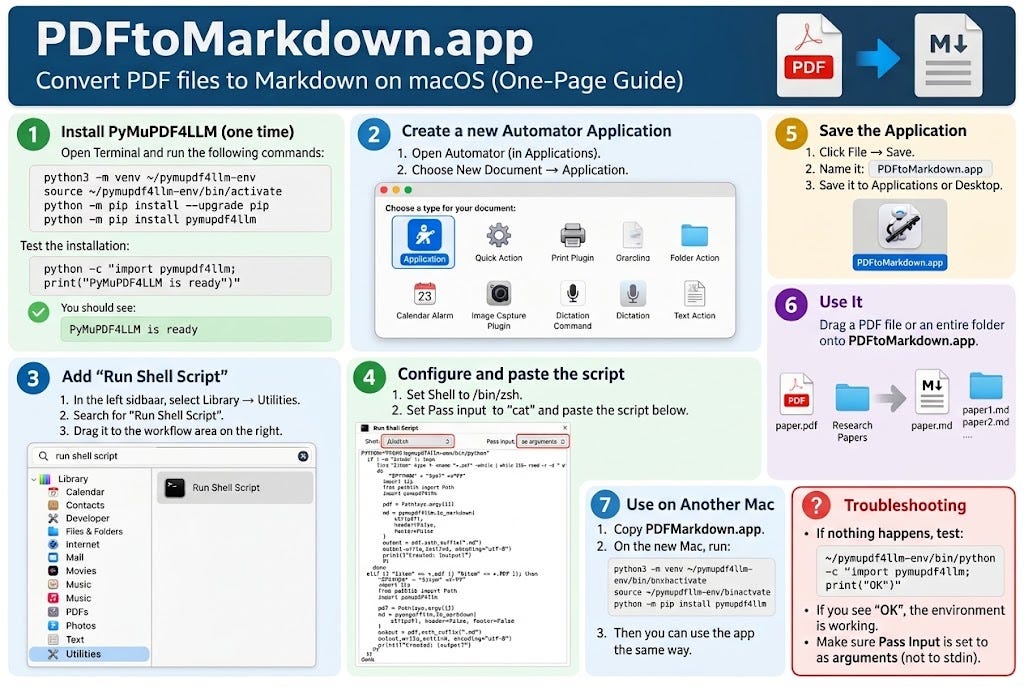
Why Use PyMuPDF4LLM?
PyMuPDF4LLM is designed to extract PDF content in a format that works well with large language models. It is particularly useful for:
academic journal articles
multi-column PDFs
reports with headings and tables
documents you want to move into Obsidian
PDFs you want ChatGPT to analyze more efficiently
The goal is simple:
PDF
 ↓
PyMuPDF4LLM
 ↓
Markdown (.md)
 ↓
ChatGPT / Obsidian / other AI tools
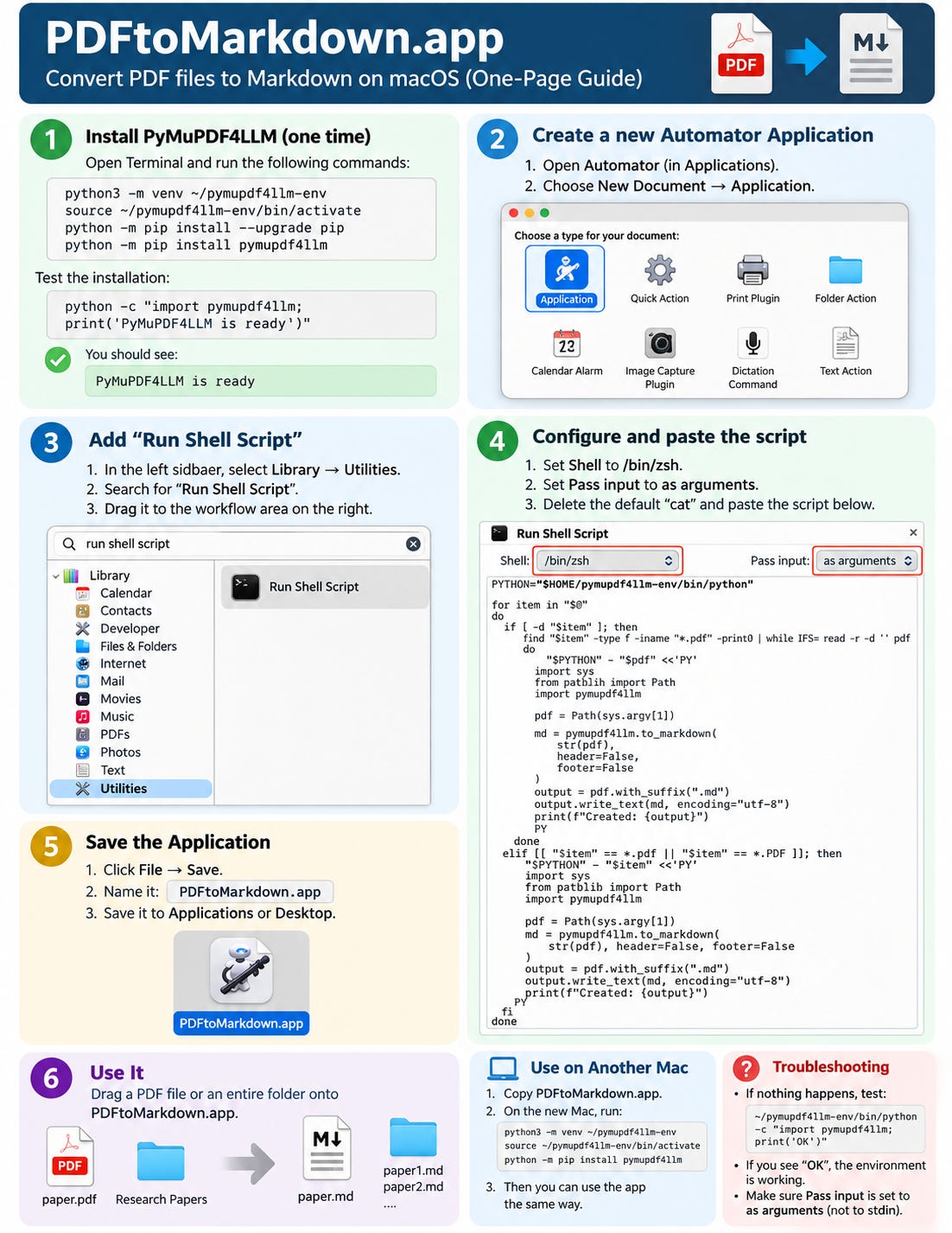
Step 1. Install PyMuPDF4LLM
Open Terminal on your Mac and run:
python3 -m venv ~/pymupdf4llm-env
source ~/pymupdf4llm-env/bin/activate
python -m pip install --upgrade pip
python -m pip install pymupdf4llm
This creates a dedicated Python environment in your home folder.
Using a virtual environment is important on newer macOS systems because Homebrew Python may block system-wide package installation with an externally-managed-environment error.
You do not need to override that protection.
Test the installation:
python -c "import pymupdf4llm; print('PyMuPDF4LLM is ready')"If everything is working, you should see:
PyMuPDF4LLM is readyStep 2. Create a Mac Automator Application
Open:
Applications → Automator
Then choose:
New Document → Application
In the search box, search for:
Run Shell ScriptDrag Run Shell Script into the workflow area.
Set:
Shell: /bin/zsh
Pass input: as arguments
The second setting is important. Do not leave it as to stdin.
Delete the default:
catStep 3. Paste This Script
Copy and paste the following script into Automator:
PYTHON="$HOME/pymupdf4llm-env/bin/python"

for item in "$@"
do
    if [ -d "$item" ]; then
        find "$item" -type f -iname "*.pdf" -print0 | while IFS= read -r -d '' pdf
        do
            "$PYTHON" - "$pdf" <<'PY'
import sys
from pathlib import Path
import pymupdf4llm

pdf = Path(sys.argv[1])

print(f"Converting: {pdf.name}")

md = pymupdf4llm.to_markdown(
    str(pdf),
    header=False,
    footer=False
)

output = pdf.with_suffix(".md")
output.write_text(md, encoding="utf-8")

print(f"Created: {output}")
PY
        done

    elif [[ "$item" == *.pdf || "$item" == *.PDF ]]; then

        "$PYTHON" - "$item" <<'PY'
import sys
from pathlib import Path
import pymupdf4llm

pdf = Path(sys.argv[1])

print(f"Converting: {pdf.name}")

md = pymupdf4llm.to_markdown(
    str(pdf),
    header=False,
    footer=False
)

output = pdf.with_suffix(".md")
output.write_text(md, encoding="utf-8")

print(f"Created: {output}")
PY

    fi
done
The key line is:
PYTHON="$HOME/pymupdf4llm-env/bin/python"Using $HOME makes the app much more portable because it automatically adapts to the current Mac user’s home directory.
Step 4. Save the App
In Automator, choose:
File → Save
Name the application:
PDFtoMarkdown.appSave it in either:
Applicationsor:
DesktopThat is the entire setup.
Step 5. Use It
Now you can drag a single PDF onto the app.
For example:
paper.pdf
     ↓
PDFtoMarkdown.app
     ↓
paper.md
The Markdown file is created beside the original PDF.
You can also drag an entire folder:
Research Papers/
├── article1.pdf
├── article2.pdf
└── Subfolder/
    └── article3.pdf
The app will search the folder and its subfolders automatically.
The result becomes:
Research Papers/
├── article1.pdf
├── article1.md
├── article2.pdf
├── article2.md
└── Subfolder/
    ├── article3.pdf
    └── article3.md
This is especially useful when converting dozens or hundreds of academic articles at once.
Using the Markdown Files with ChatGPT
Once the conversion is complete, the workflow becomes very simple:
Academic PDF
     ↓
PDFtoMarkdown.app
     ↓
Markdown file
     ↓
Upload to ChatGPT
You can then ask ChatGPT to:
summarize an article
identify theoretical contributions
compare several papers
extract hypotheses
review methods
inspect results
organize references
prepare literature-review notes
For large document collections, Markdown can also be easier to search and manage than PDFs alone.
Using the Files in Obsidian
The same Markdown files can be placed directly into an Obsidian vault.
For example:
Obsidian Vault/
└── Research/
    ├── article1.md
    ├── article2.md
    └── article3.md
Because Markdown is Obsidian’s native format, the converted documents immediately become searchable notes.
This creates a useful workflow for building a personal academic knowledge base:
PDF Library
     ↓
PyMuPDF4LLM
     ↓
Markdown
     ↓
Obsidian Knowledge Base
     ↓
ChatGPT-assisted research
Moving the App to Another Mac
You can copy PDFtoMarkdown.app to another Mac, but the second Mac also needs PyMuPDF4LLM installed.
On the new Mac, run:
python3 -m venv ~/pymupdf4llm-env
source ~/pymupdf4llm-env/bin/activate
python -m pip install pymupdf4llm
Then copy:
PDFtoMarkdown.appto that Mac.
Because the app uses:
$HOME/pymupdf4llm-env/bin/pythonyou normally do not need to edit the Automator script.
Troubleshooting
If you drag a PDF onto the app and nothing happens, check the Python environment with:
~/pymupdf4llm-env/bin/python -c "import pymupdf4llm; print('OK')"If you see:
OKthen PyMuPDF4LLM is installed correctly.
Also confirm that Automator is configured as:
Shell: /bin/zsh
Pass input: as arguments
The as arguments setting is essential.
Final Workflow
After the one-time setup, the whole process is simply:
PDF or Folder
      ↓ drag
PDFtoMarkdown.app
      ↓
Markdown files
      ↓
ChatGPT / Obsidian
No repeated Terminal commands are required.
For researchers, faculty members, students, and anyone working with large PDF collections, this is a simple way to create an AI-ready Markdown library on macOS.
Appendix: One page Manual
Author Profile:
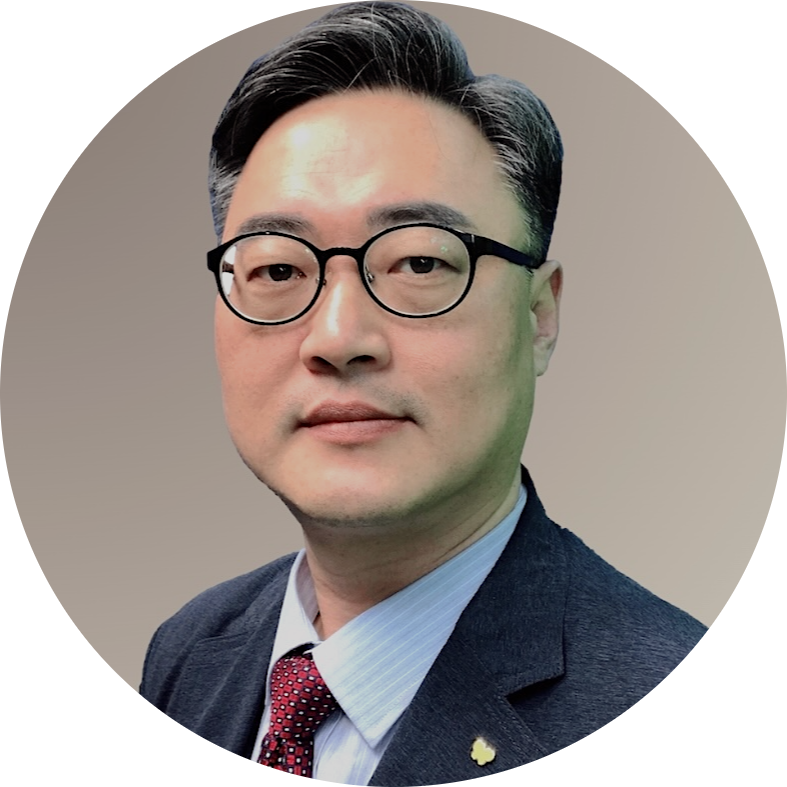
Prof. Dr. Jeonghwan (Jerry) Choi (Managing Editor), University of Maine at Presque Isle
Jeonghwan (Jerry) Choi, PhD is an Associate Professor of Business at the University of Maine at Presque Isle and Editor-in-Coordination of K-GSP Forum (contact: jeonghwan.choi at gmail.com). With over 25 years of industry and consulting experience, he specializes in leadership development, human resource management, organizational behavior, and social entrepreneurship. His research focuses on workforce resilience, organizational health, and self-directed leadership — bridging rigorous scholarship with practical insight to cultivate leaders who create meaningful, sustainable, and humane organizations.